
Legacy Client Reports
Legacy client reports are the older versions of client reports still available for advisors who prefer their format. Legacy reports are limited to the reports included in each reporting level. Reports within each reporting level can be turned on and off and saved as templates.
 Available legacy client reports
The following legacy client reports are available in NaviPlan for Level 2 Plans and are accessible from the Results – Legacy Client Report page:
| Legacy Report | Description |
|---|---|
| Financial Needs Assessment | This report provides an overview of the clients’ current financial situation and indicates whether the clients’ goals are attainable. |
| Asset Allocation | This report demonstrates the effects that the clients’ time horizon, risk tolerance, and asset allocation have on their portfolio returns. The clients’ portfolio is calculated based on their existing accounts and related holdings. |
| Financial Needs Summary | This report provides an overview of your clients’ current financial situation with special emphasis on their retirement goal. Typically, this report is used when the recommended plan has been finalized as the final presentation to the clients. |
| Retirement Distribution Summary | This report is useful to clients who are nearing or at retirement, and provides an in-depth review of the plan retirement period and the distribution of income the clients may expect in retirement. The report focuses on the apparent risks in the clients’ current plan and how those risks have been reduced by strategies implemented in the proposed plan. It also shows a review of the fixed and total incomes as well as expenses during retirement. |
| Financial Needs Analysis | This report provides a comprehensive view of the entire plan, including a summary of the clients’ needs and objectives, the financial assumptions used in preparing the financial analysis, as well as additional strategies that could be implemented to achieve the objectives. The report includes summaries of the various analyses performed and recommendations and strategies that could be used to meet the clients’ objectives. A synopsis of the analysis data is included. |
Generating legacy client reports
To generate a legacy client report, follow these steps:
-
Go to the Results – Legacy Client Report page.

Results - Legacy Client Reports page - Select Plan Data pop-up
-
To include alternative plans in the Legacy reports, click Select Plan Data, and then select the alternative plans to include.
Note: The current and recommended plans are always included.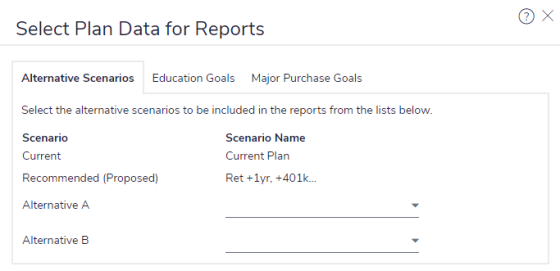
Results - Legacy Client Reports page - Select Plan Data pop-up
- If applicable, select a template to use for the report.
-
Click Document Sections for the report you want to generate.
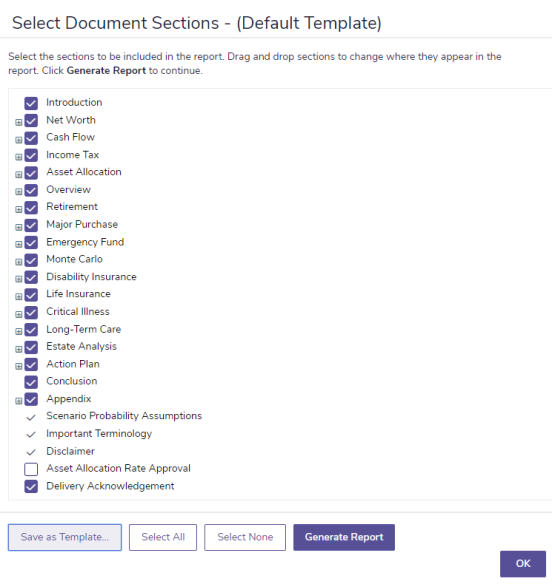
Results - Legacy Client Reports page - Document Sections pop-up
- Select the sections you want included in the report.
- To view the subsections for a section, click the + beside that section. The menu expands and subsections appear. Select or clear the options for the appropriate subsections.
- To reorder report sections, click an applicable section, and then drag it to another location.
- To save your selections as a template for this type of Legacy report, click Save as Template. Enter a name for the template, and then click OK.
The templates you create can be managed on the User Preferences - System Settings – Legacy Templates page (Settings menu – System Settings). - Click OK. NaviPlan saves your selections.
-
To generate the report, click Generate. If you generated this report before, this button appears as Regenerate. If you are using NaviPlan Online, the Status column updates.
Note: In NaviPlan Offline, you may have to click Refresh to update the Status column.
Available legacy client reports
The following legacy client reports are available in NaviPlan for Level 1 Plans and are accessible from the Results – Legacy Client Report page:
| Legacy Report | Description |
|---|---|
| Financial Needs Assessment | This report provides an overview of the clients’ current financial situation and indicates whether the clients’ goals are attainable. |
| Asset Allocation | This report demonstrates the effects that the clients’ time horizon, risk tolerance, and asset allocation have on their portfolio returns. The clients’ portfolio is calculated based on their existing accounts and related holdings. |
| Financial Needs Summary | This report provides an overview of your clients’ current financial situation with special emphasis on their retirement goal. Typically, this report is used when the recommended plan has been finalized as the final presentation to the clients. |
| Retirement Distribution Summary | This report is useful to clients who are nearing or at retirement, and provides an in-depth review of the plan retirement period and the distribution of income the clients may expect in retirement. The report focuses on the apparent risks in the clients’ current plan and how those risks have been reduced by strategies implemented in the proposed plan. It also shows a review of the fixed and total incomes as well as expenses during retirement. |
Generating legacy client reports
To generate a legacy client report, follow these steps:
-
Go to the Results – Legacy Client Report page.
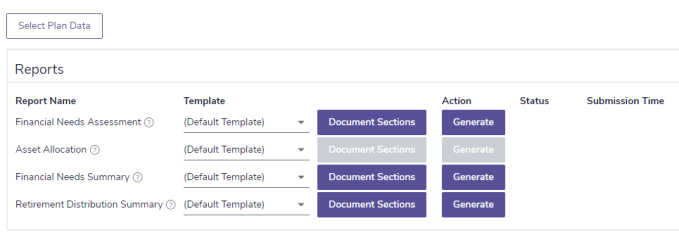
Results - Legacy Client Reports page - Select Plan Data pop-up
-
To include alternative plans in the Legacy reports, click Select Plan Data, and then select the alternative plans to include.
Note: The current and recommended plans are always included.
Results - Legacy Client Reports page - Select Plan Data pop-up
- If applicable, select a template to use for the report.
-
Click Document Sections for the report you want to generate.
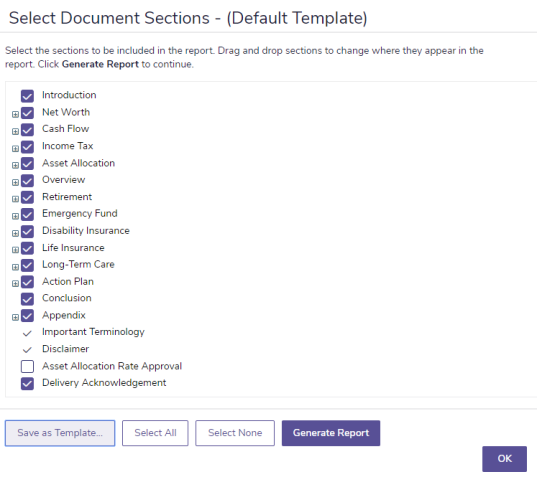
Results - Legacy Client Reports page - Document Sections pop-up
- Select the sections you want included in the report.
- To view the subsections for a section, click the + beside that section. The menu expands and subsections appear. Select or clear the options for the appropriate subsections.
- To reorder report sections, click an applicable section, and then drag it to another location.
- To save your selections as a template for this type of Legacy report, click Save as Template. Enter a name for the template, and then click OK.
The templates you create can be managed on the User Preferences - System Settings – Legacy Templates page (Settings menu – System Settings). - Click OK. NaviPlan saves your selections.
-
To generate the report, click Generate. If you generated this report before, this button appears as Regenerate. If you are using NaviPlan Online, the Status column updates.
Note: In NaviPlan Offline, you may have to click Refresh to update the Status column.
Available legacy client reports
The following legacy client reports are available in NaviPlan for asset allocation assessments and are accessible from the Client Report tab:
| Legacy Report | Description |
|---|---|
| Asset Allocation | This report demonstrates the effects that the clients’ time horizon, risk tolerance, and asset allocation have on their portfolio returns. The clients’ portfolio is calculated based on their existing accounts and related holdings. |
Generating legacy client reports
To generate a legacy client report, follow these steps:
-
Go to the Results – Client Report page.

Results - Legacy Client Reports page - Select Plan Data pop-up
- If applicable, select a template to use for the report.
-
Click Document Sections for the report you want to generate.

Results - Legacy Client Reports page - Document Sections pop-up
- Select the sections you want included in the report.
- To view the subsections for a section, click the + beside that section. The menu expands and subsections appear. Select or clear the options for the appropriate subsections.
- To reorder report sections, click an applicable section, and then drag it to another location.
- To save your selections as a template for this type of Legacy report, click Save as Template. Enter a name for the template, and then click OK.
The templates you create can be managed on the User Preferences - System Settings – Legacy Templates page (Settings menu – System Settings). - Click OK. NaviPlan saves your selections.
-
To generate the report, click Generate. If you generated this report before, this button appears as Regenerate. If you are using NaviPlan Online, the Status column updates.
Note: In NaviPlan Offline, you may have to click Refresh to update the Status column.